The Calibration Tab
What is the Calibration Tab?
The calibration tab allows you to tweak how your tracker responds to your facial movements and expressions. It is the primary method of tuning babble's performance to your preferences.
There is no universal way of calibrating, each person has a unique face and will have their own view on what works and looks best for them, so go experiment!
Where is it located?
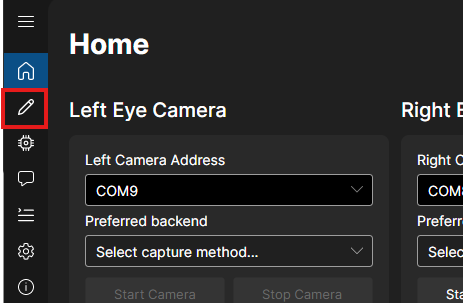
The calibration tab is located at the bar to the left of the app and is marked with the pencil icon:
The Callibration tab is divided into 6 drop down menus:
- Eye Expressions
- Cheek Expressions
- Jaw Expressions
- Nose Expressions
- Mouth Expressions
- Tongue Expressions
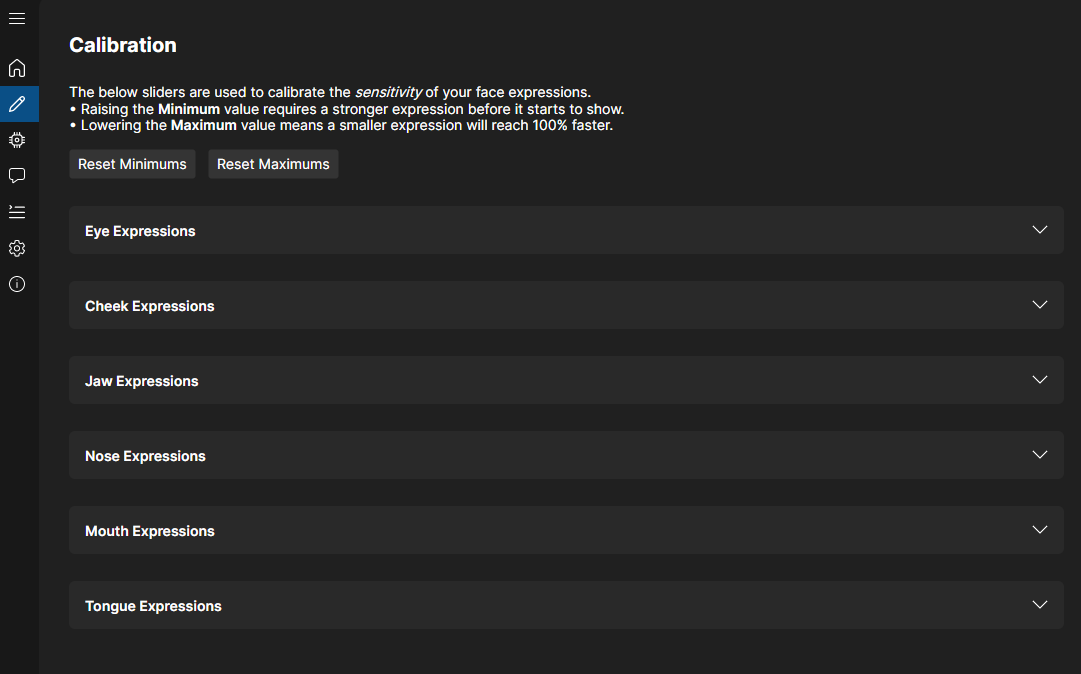
Each dropdown menu contains sliders for a subset of detectable expressions.
Each slider is labeled with the name of a specific parameter / blendshape it controls, and adjusting it controls how the expression gets detected:
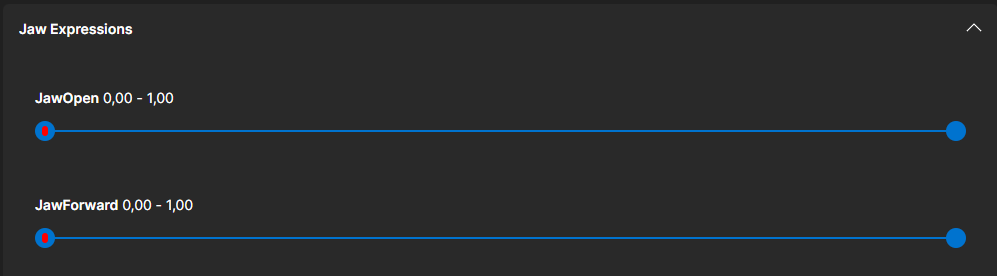
The slider also contains a red dot visualizing the current state of the given blendshapes that is being detected.

Adjusting values
The slider for each blendshape is controlled by two handles on either side of the blue bar. The left side is the minimum cutoff, and the right side is the maximum. By tweaking those, you influence how the tracker picks up your expressions.
The red dot indicates the current detected value of a given shape.
The red dot will always move between the far left and far right side of the sliders and it's not bound to the position of the blue handles. You can check if any given shape is being detected by simply observing if the red dot is moving.
Left slider - minimum: controls how quickly the tracker will pick up your movement. By moving it, you will change how big of a movement you have to make for it to be detected.

This is not a gradual scale. Any value below the selected minimum will be completely excluded.
Right slider - maximum: controls how quickly the given movement will max out. By moving it, you will also change how small of a movement you have to do for it to get detected.

Adjusting maximums to very low (close to the left side) can make blendshapes constantly max out, but it COULD also allow to properly pick up blendshapes that are very weakly detected.
Example of possible calibration:
If you're having issues with your tracking quality, for example, your jaw is constantly opened, adjust the minimum (left side of the slider) of JawOpen until the red dot is located and dormant at the left side of the slider.

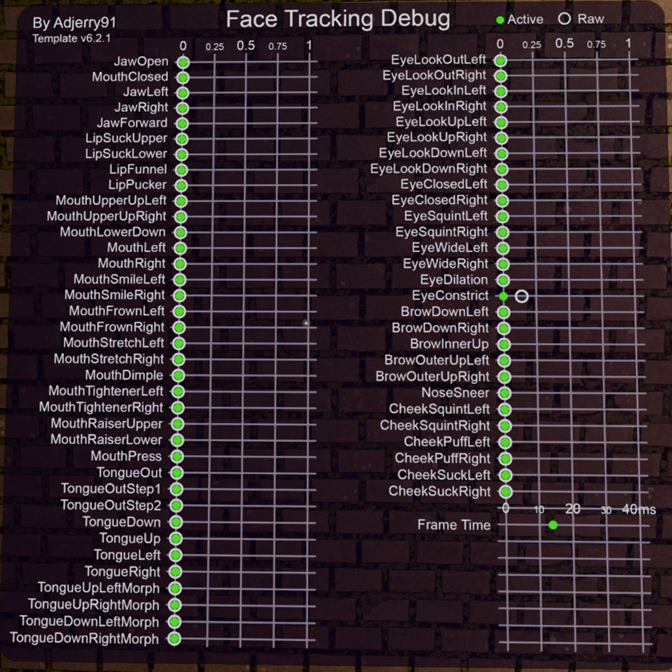
The best way to calibrate is to open up the game of your choice and tweak values while INGAME to see how it looks on your avatar! It is also a good idea to have the debug menu from your avatar's face tracking asset open to see the values live.
Troubleshooting
If you're having issues with some expressions not being picked up:
Check if your tracker is properly positioned and if the image is properly cropped and centered. Make sure your face is properly, uniformly lit and exposed so that the tracker can correctly pick up your movements. You can also refer to the Troubleshooting and FAQs page.